

When you run a blog, photos are a big part of your business. I have been going back through some older articles recently, and it is amazing to see how far my photography and editing skills have come over the years. I used Photoshop Elements long before I started blogging, but I recently had the chance to review Fotor Photo Editor, and I was impressed by how many online editing tools it offers.
For this Fotor photo editor review, I am using the Pro subscription, so some of the features mentioned may only be available with a paid plan. Fotor includes tools for editing, retouching, enhancing, designing, and even generating images, which makes it more than a basic online photo editor.
Because Fotor has so many features, I decided to break my review into two parts. This review focuses on the Fotor Photo Editor, including AI photo editing tools, manual editing options, effects, filters, and retouching features. The second part covers the creative Fotor design features in more detail.
Where Can You Edit Photos With Fotor?
When I edit photos, I am usually at home on my desktop because that is where most of my editing software has always lived. With Fotor, I like that I am not tied to one computer or one device.
I have the Fotor app installed on my phone and my Mac, and I can also access my account online. Being able to use Fotor as an online photo editor is a big advantage for me because I can work on images from home, on my laptop, or from my phone when I need to make a quick edit.
Testing Fotor Photo Editing Tools
For this Fotor photo editor review, I used the same original photo throughout the editing process so it would be easier to compare the results. Starting with one image helped me test the filters, manual editing tools, AI features, and retouching options side by side.
I was especially interested in the photo enhancer tool because it offers a quick way to improve photo quality with just one tap. This is the kind of feature that can be useful when you want a photo to look cleaner, brighter, or more polished without spending a lot of time making manual adjustments.
Original Photo

Fotor Photo Editor AI Tools
Fotor has several built-in AI photo editing tools that can quickly change the look of an image. Some of these tools are designed specifically for portraits and faces, which is why I chose the original photo above for this part of the review.
AI Skin Retouch and Face Blur
For this test, I used both the AI Skin Retouch tool and the AI Face Blur tool on the same photo. The AI Skin Retouch tool helped reduce visible skin details such as dark spots and freckles, while the AI Face Blur tool smoothed the overall appearance of the portrait.
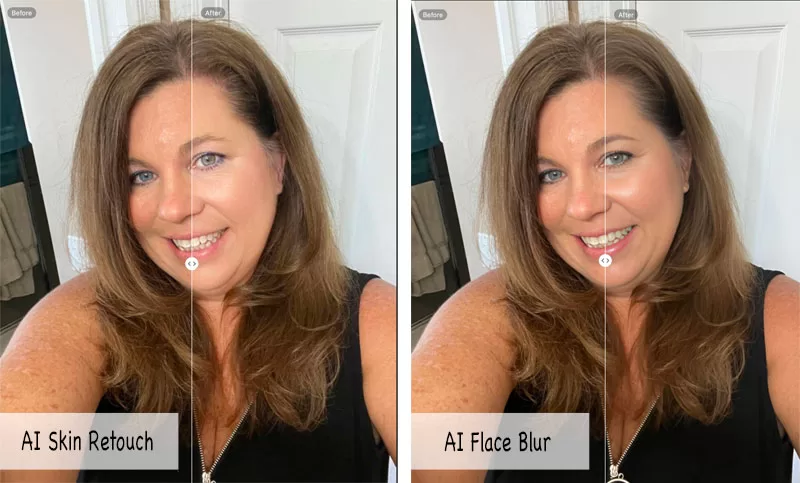
The final result is noticeably softer and more even. This may be helpful if you want a quick portrait edit, but it is also the type of tool I would use carefully so the photo still looks natural.

AI Replace Tool
The AI Replace tool was one of the features I had a harder time using. I was able to select the part of the photo I wanted to replace, but I could not always get it to replace the item with exactly what I had in mind.
For this example, I used a photo of my daughter. She came out of the room and told her dad, “Do not take a photo of me with socks in my hand,” but he took the photo anyway. I tried using the AI Replace tool to swap the socks for flowers, but the final result changed them into a black shawl instead.
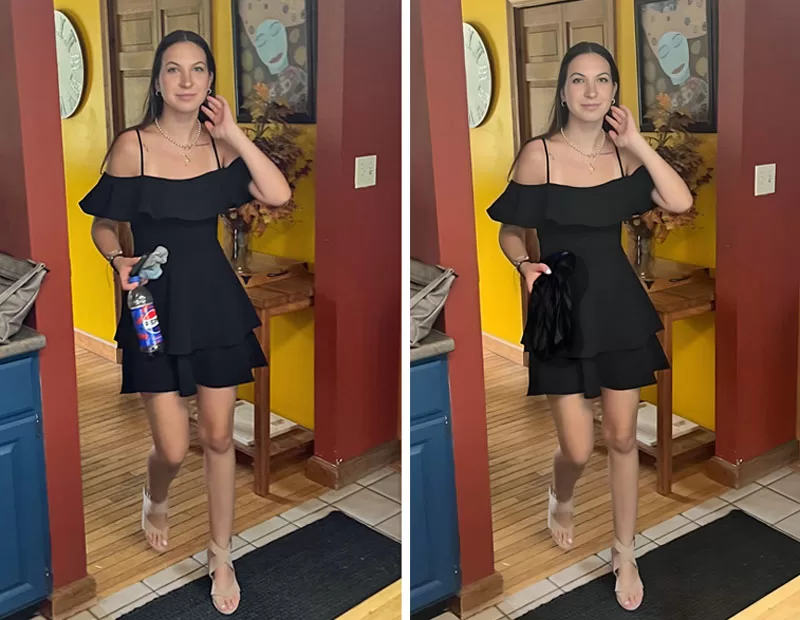
Even though it was not the exact result I requested, the edit still worked well enough to save the photo. This is a good example of where AI photo editing can be helpful, but it may take a few tries to get the result you actually want.
AI Magic Remove Tool
This is a real-life example of how I used Fotor Photo Editor for one of my blog posts, my Dazzling Dandelion Crystal Chandelier Review. For this edit, I wanted to test the AI Magic Remove tool on small distractions in the photo.
In the first image, you can see a small piece of my dining room table showing in the bottom left corner. There were also shadows from the items on the buffet table that I wanted to clean up. In the second image, the table edge and shadows were removed, and I also made a few lighting adjustments to brighten the photo.
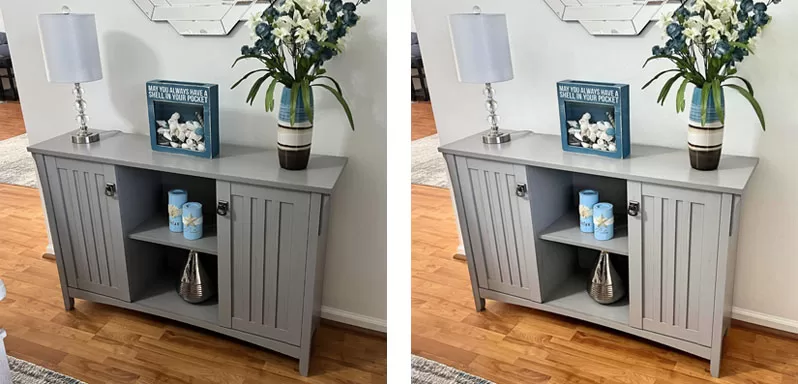
The AI Magic Remove tool can be helpful for small edits or for removing objects against a solid or mostly solid background. It did not work as well when I tested it on a larger object with a detailed background, such as a person in front of trees. That edit was much more obvious, so this is a tool that works best when you understand its limitations.
Fotor Photo Editor Editing Tools
In addition to the AI photo editing tools, Fotor also includes traditional editing features that let you adjust and style your images manually. These tools are helpful when you want more control over the final look of a photo instead of relying only on one-click AI edits.
Effects, Filters, and Scenes
There are so many different effects you can apply to a photo in Fotor. The editor includes multiple effect categories, including classic, black and white, portrait, and more creative styles, with a large selection of individual effects inside each category.
Using the same original photo, I applied several different effects to show how much the overall look of an image can change. Some effects make the photo feel softer and brighter, while others add more contrast, color, mood, or a vintage-style finish.
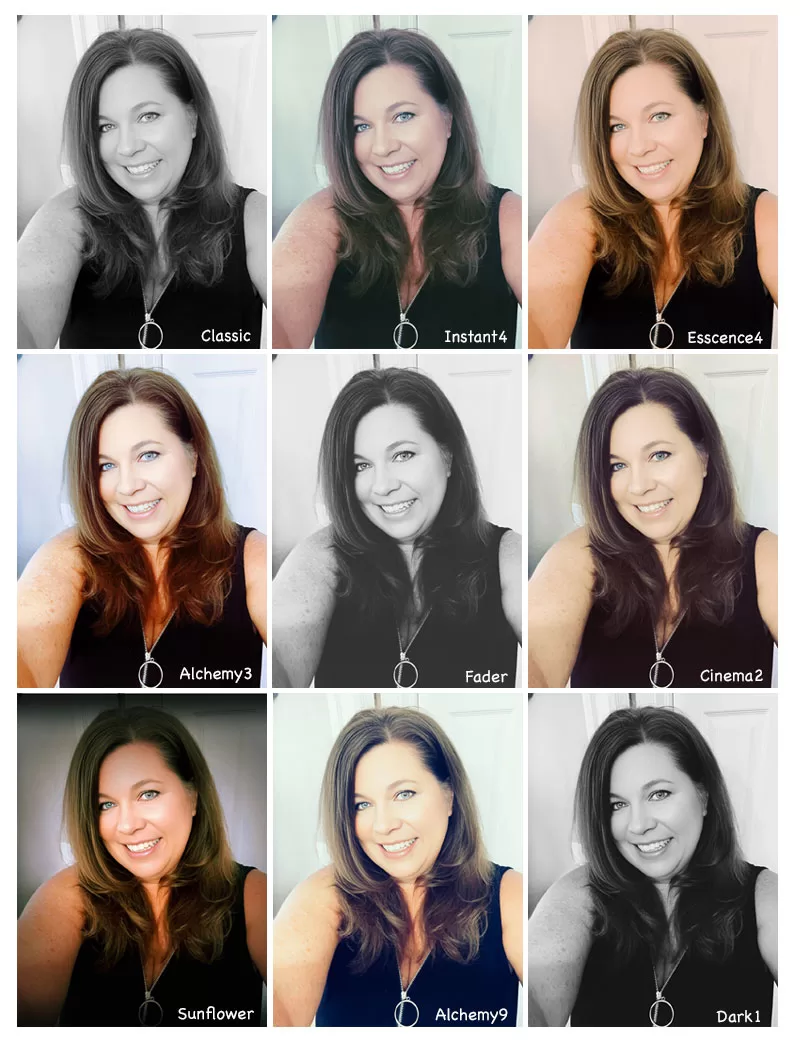
Photo Frames
Fotor also includes a large selection of photo frames that can add personality, style, or seasonal detail to an image. Some frames are simple and clean, while others are more decorative and themed.
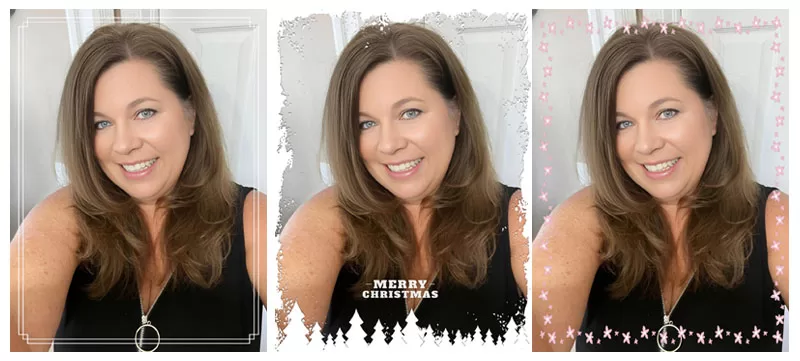
This is a fun tool when you want to quickly dress up a photo for a holiday, social media post, blog graphic, or personal project. I liked that the frame options ranged from subtle borders to more playful designs, so you can choose something simple or go with a more creative look.
Manual Photo Editing Tools
Fotor also includes several manual photo editing tools, which give you more control over how your final image looks. These are the tools I would use when I want to make specific adjustments instead of relying on one-click effects or AI editing.
With the manual editor, you can crop an image, adjust the aspect ratio, brighten a dark photo, improve contrast, sharpen details, reduce noise, change color tones, and fine-tune the overall look of the photo.
Some of the manual editing options include:
- Crop by size, shape, or distort
- Dehaze *
- White balance with temperature and tint adjustmentsBasic edits such as exposure, brightness, contrast, vibrance, and saturationDetail adjustments such as clarity and sharpen
- Denoise for luminance noise, color noise, and detail *
- Levels for highlights, shadows, whites, and blacks
- Structure for detail and gradation *
- Vignette with intensity, scale, feather, and roundness
- HSL for color range, hue, saturation, and brightness *
- RGB adjustments for hue, midtones, and shadows *
- Curve
- Film grain with intensity and roughness *
- Focus
The items denoted with a “*” are pro features.
I like that Fotor offers both quick editing tools and more detailed manual options. That makes it useful whether you want a fast edit or you want to spend more time adjusting the photo exactly how you want it.
Text and Elements
Fotor also lets you add text and graphic elements to your photos, which can be helpful if you are creating social media images, blog graphics, announcements, or simple promotional designs. You can adjust the text size, color, opacity, shadow, and other styling options to fit the look of your image.
The elements work similarly to stickers, with a large collection of graphics you can search through. For example, when I searched for “rainbow,” Fotor displayed more than 100 different rainbow-style elements to choose from.
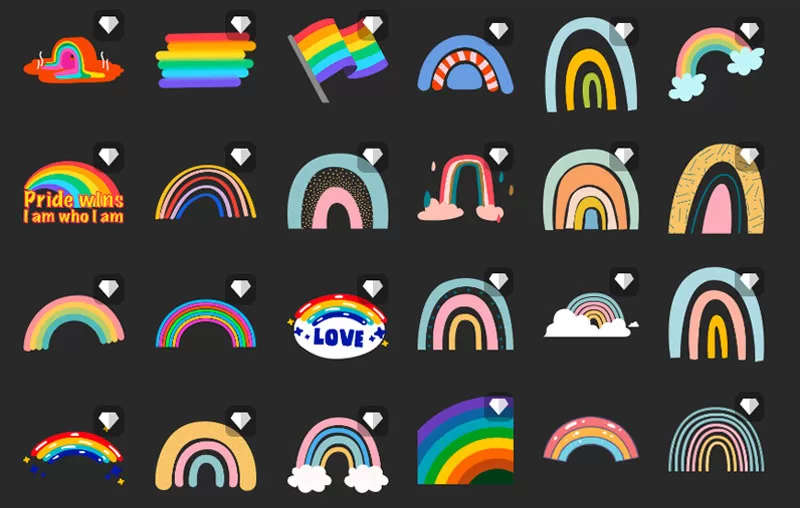
This makes it easier to find a specific graphic instead of scrolling through every option.
Backgrounds
Fotor also includes background options that can be placed behind your photo, similar to the way frames add a design around an image. These backgrounds can quickly change the feel of a photo without needing to create a full design from scratch.
There are many different styles to choose from, including solid colors, patterns, stars, abstract designs, and more playful options.
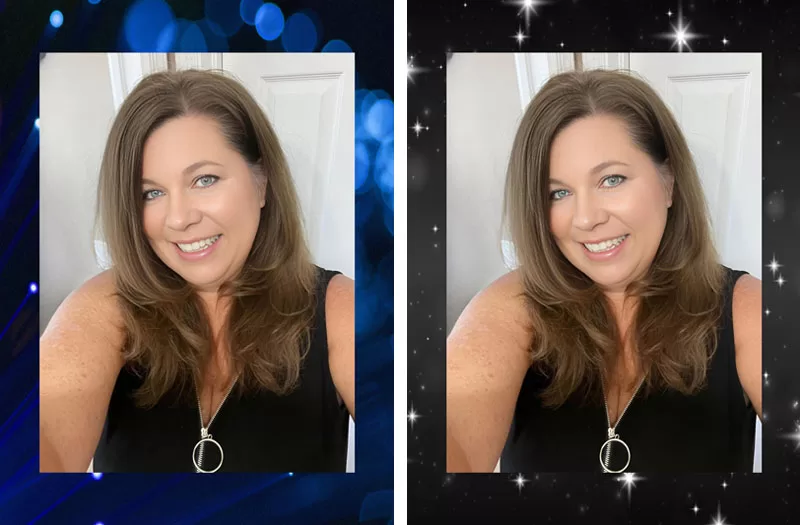
This can be useful when you want to turn a simple portrait into something better suited for a social media post, profile image, or creative graphic.
Create a Recipe
The Create a Recipe tool is a pretty nifty feature because it lets you save a series of edits and apply them again later. It reminds me of creating a macro in Excel or an action in Photoshop.
For example, if you regularly use the same effect, skin retouch setting, and frame, you can save those steps as a recipe. Then, the next time you want that same look, you can click on the saved recipe and Fotor will apply those editing options for you.
This is especially helpful if you edit photos for a blog, social media, or brand content and want your images to have a consistent style without repeating the same steps every time.
To learn more about Fotor’s creative tools beyond photo editing, the second part of this review covers the Fotor design features in more detail.
Is Fotor Worth Trying for Photo Editing?
After spending time testing Fotor Photo Editor, I can see why it is useful for bloggers, content creators, small business owners, and anyone who edits photos regularly. I like that it offers quick AI tools, manual editing options, effects, filters, frames, backgrounds, and saved recipes all in one place.
Some tools worked better than others, and a few AI features may take more than one try to get the result you want. However, Fotor makes it easy to improve, retouch, and style photos without needing complicated software. For me, the biggest advantage is being able to edit photos online from different devices while still having access to a wide range of creative tools.