
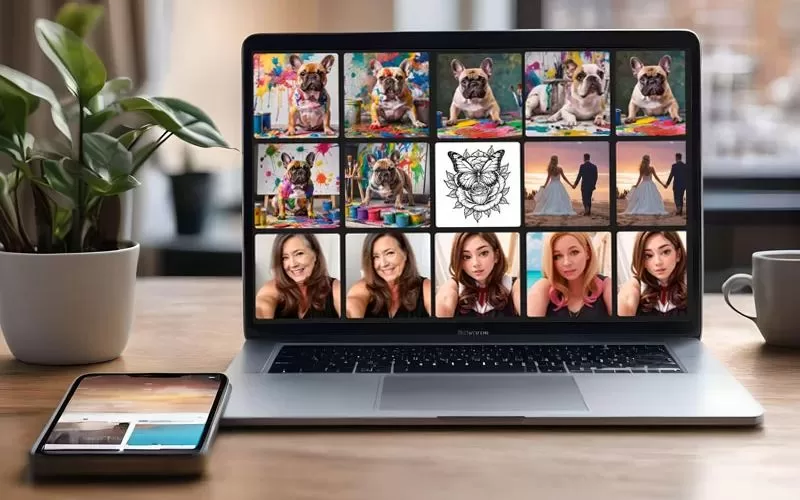
I have been spending more time getting to know Fotor, and one thing became clear pretty quickly: there are far too many tools to cover in one post. I decided to break my Fotor review into two parts, so I could give both the photo editing tools and the creative design features the attention they deserve.
This part of the review focuses on the Fotor AI features and design tools, including the creative options that let you generate, edit, and transform images in a more visual way. From AI effects and background tools to sketch-style designs and creative filters, Fotor offers a lot for anyone who wants to experiment with online design without starting from scratch.
Additional AI Photo Editing Tools
AI UpscalER
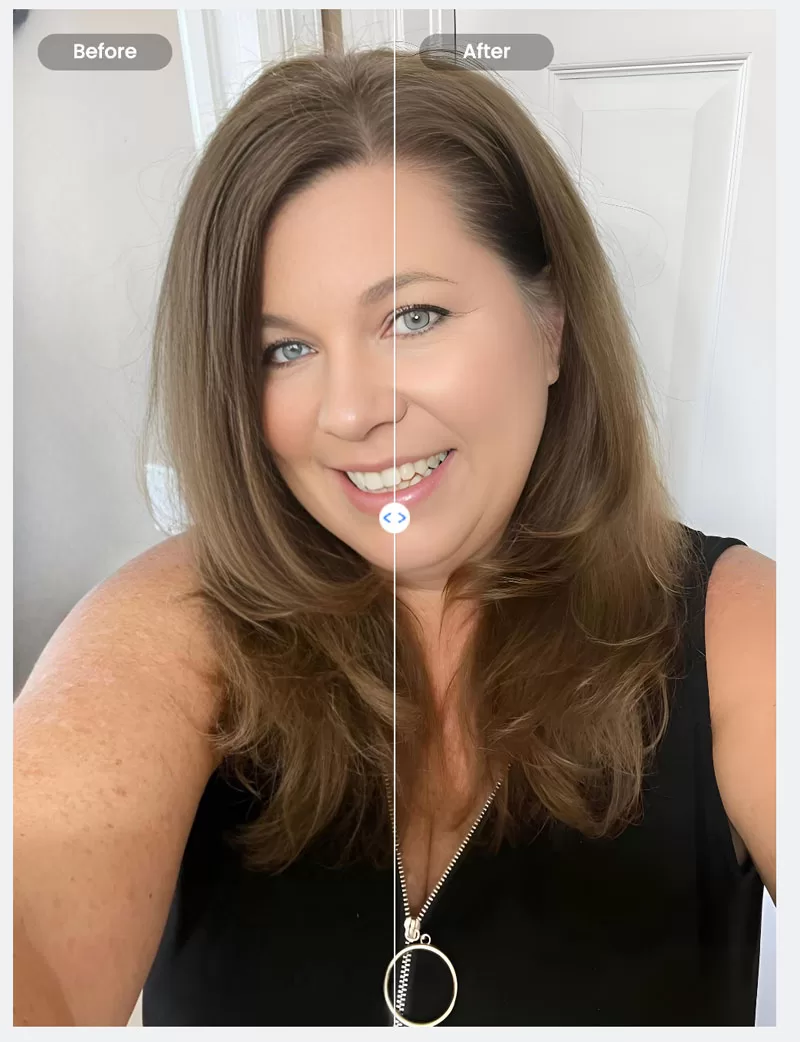
While testing the online version of Fotor, I discovered a few additional AI photo editing tools that were not available in the desktop version. One of them was the AI Upscaler, which is designed to upscale, denoise, and enhance images with a single click.
To test it, I used the same photo from earlier in this review. The changes are subtle, but the enhanced version appears smoother overall, particularly in the skin on my face, chest, and arms. The image also looks slightly brighter and more refined while still maintaining a natural appearance.
AI change background
I really like the Fotor AI Change Background tool because it gives you a lot of creative options, especially when the original background in a photo is not ideal. This is one of those features that can be useful for product photos, portraits, social media images, blog graphics, or simply saving a photo that has a distracting background.
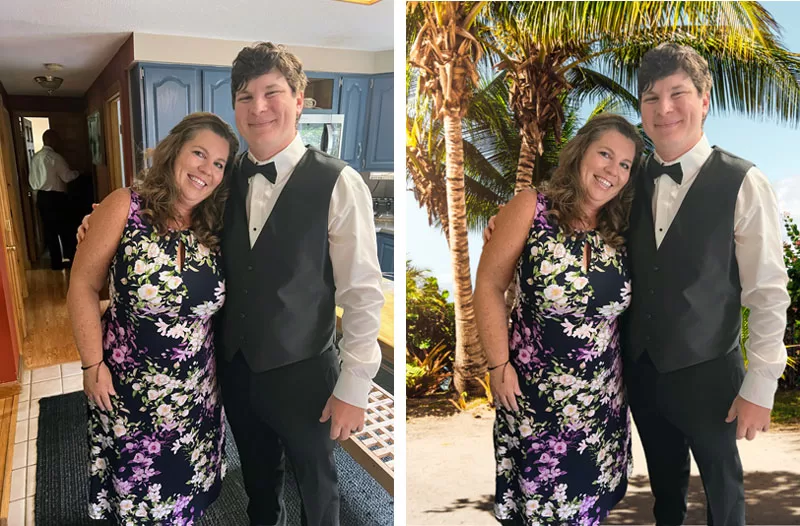
The photo below is of my son and me on his wedding day. We were inside our Airbnb in Maine, and while I love the photo itself, the background was not exactly what I would have chosen. The weather was also rainy that day, so I decided to have a little fun with the image and replace the indoor background with a tropical outdoor setting.
Change Background To a Photo
For this example, I removed the original background and uploaded a separate image to use as the new background. This shows how Fotor can take a personal photo and completely change the look and feel of it in just a few steps.
Change Background to Fotor Design
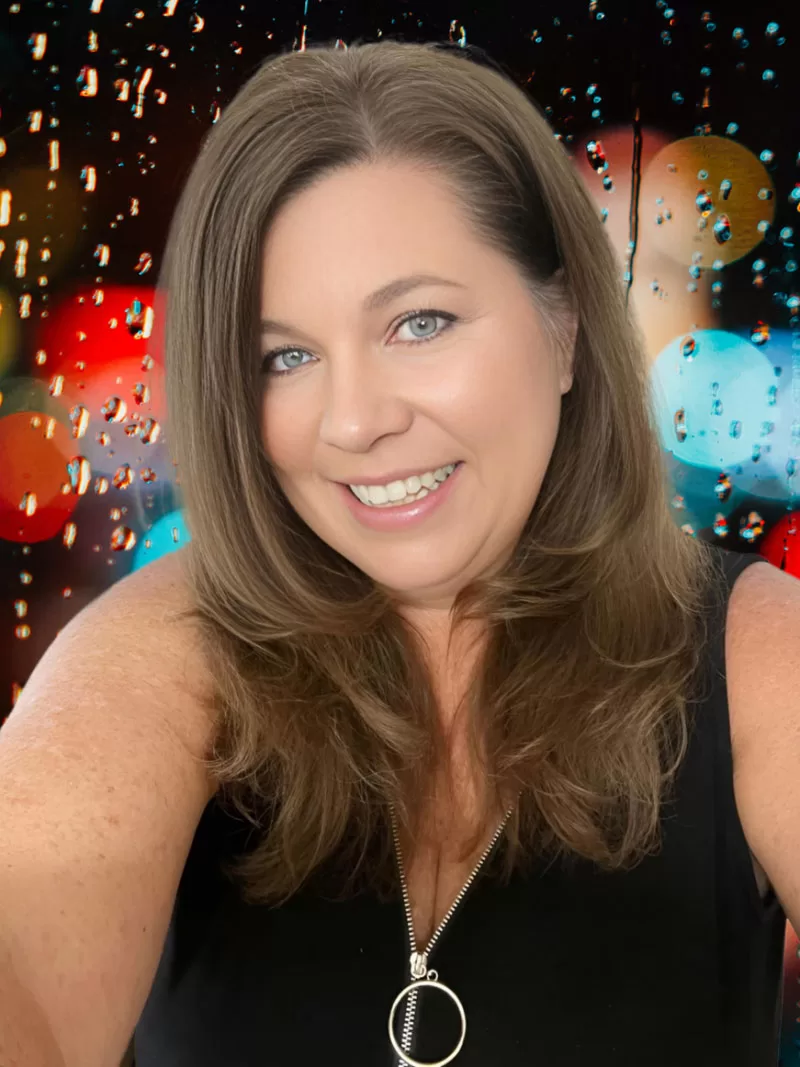
Another option is to use one of Fotor’s own background designs instead of uploading a separate photo. For this example, I used the same portrait and changed the background to a colorful rainy-window design with blurred lights.
This gives the photo a completely different mood and makes it feel more like a creative portrait than a simple selfie. I can see this being useful for profile photos, blog images, social media graphics, or anytime you want a more stylized image without taking a brand-new photo.
Fotor AI Image Filters
I had so much fun testing the Fotor AI image filters because they go beyond basic photo editing. Instead of simply adjusting brightness, smoothing skin, or changing the background, these tools can transform a photo into something that looks completely new.
There are several different AI filter options inside Fotor, and this is where the design features start to feel more creative. These tools can turn a regular photo into artwork, a stylized portrait, or a completely different visual style, which can be helpful for blog images, social media graphics, and creative projects.
AI Anime Filter
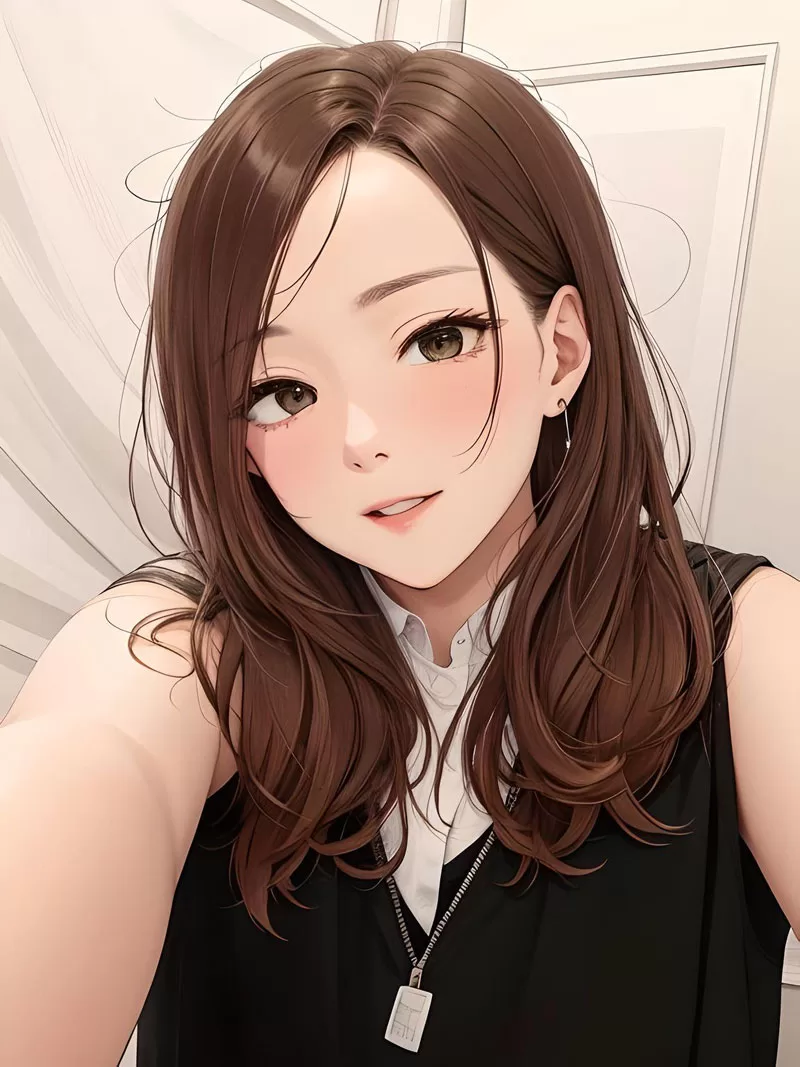
My son is a huge anime fan, so I had to give the AI Anime filter a try. Using the same photo I had been testing throughout this review, Fotor turned me into an anime-style character in a matter of seconds.
The result was fun, detailed, and definitely different from a standard portrait edit. This is a good example of how Fotor’s AI design tools can create an entirely new image style instead of just enhancing the original photo.
AI 3D Cartoon Filter
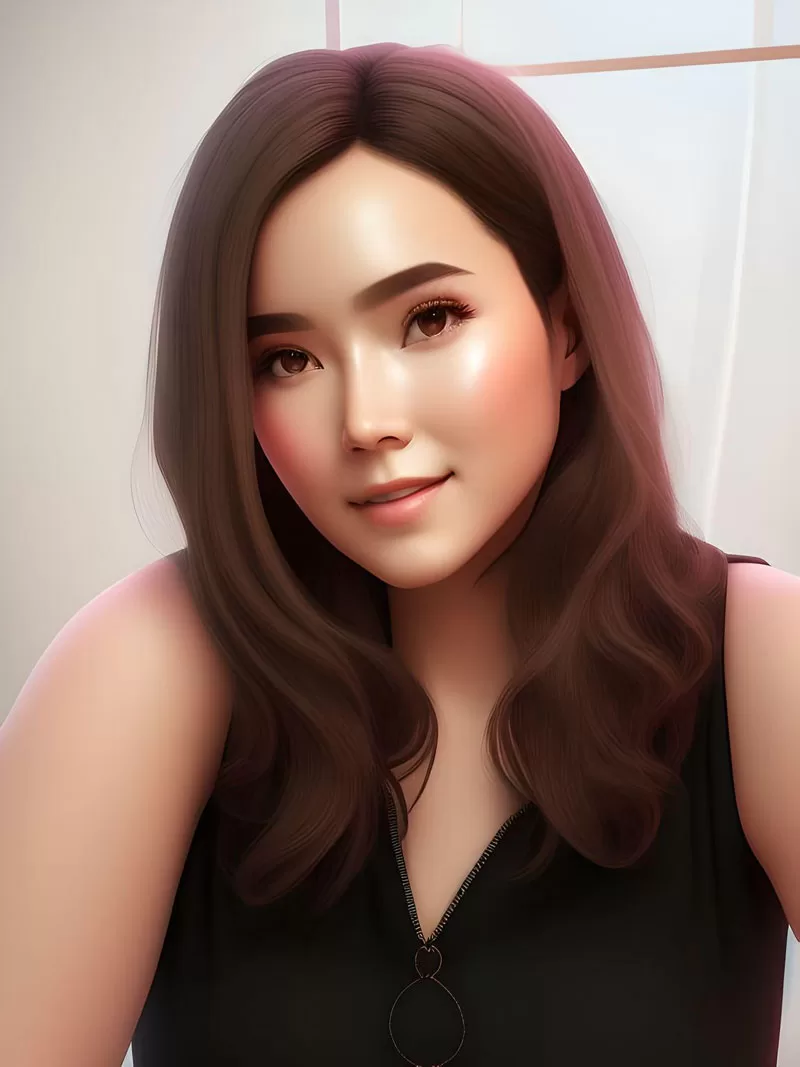
There are so many Fotor AI image filters available that I am only sharing a few examples in this review. The AI 3D Cartoon filter was another fun one to test because it creates a softer, more dimensional cartoon-style portrait.
This filter reminded me of a Pixar-style character, but with a slightly more realistic look than a traditional cartoon. It still completely changes the original photo, but it keeps enough facial detail to make the final image feel recognizable.
AI Watercolor and Sketch Filters
The AI Watercolor and Sketch filters are two more examples of how Fotor can turn a regular photo into something more artistic. The watercolor option creates a soft, painted look, while the sketch filter gives the image a hand-drawn effect.
These are the types of filters I can see being useful when you want a blog image, profile photo, or creative project to feel a little more unique than a standard edited photo.
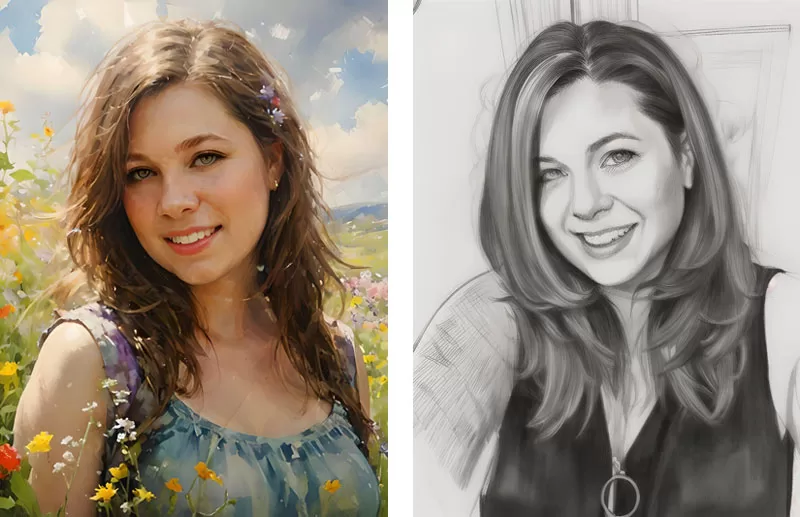
As you can see, the Fotor AI image filters create a completely new version of the original photo. There may still be some resemblance to me in these images, but they are no longer simple edited photos. They feel more like AI-generated artwork inspired by the original image.
That is what makes these tools fun to experiment with. If you need a specific look for a blog image, social media post, profile photo, or creative project, the AI filters can help you create something more unique than a standard photo edit.
Some additional Fotor AI filters include:
- Barbie
- Claymation
- Watercolor
- Zombie
- Christmas
AI Avatar Generator
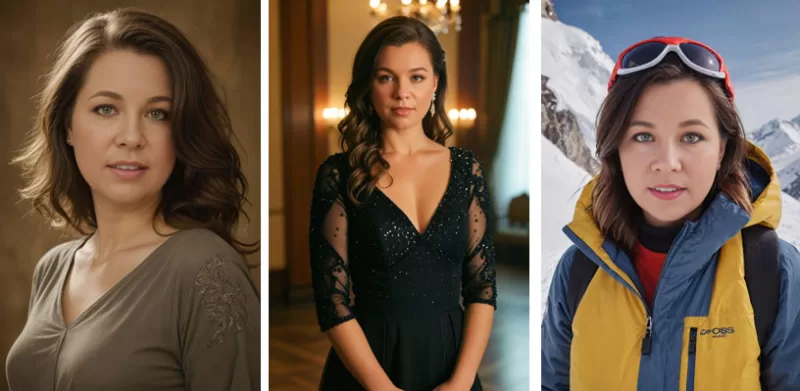
Moving further into the Fotor design features, I also tested the AI Avatar Generator. This tool creates AI-generated avatar images based on the photo you upload, giving you a variety of looks, outfits, backgrounds, and styles.
This was another fun feature to experiment with because the results feel more like character images than regular photo edits. I could see this being useful for profile photos, social media graphics, creative bios, or just playing around with different visual styles without needing a professional photo shoot.
Quick Design Features
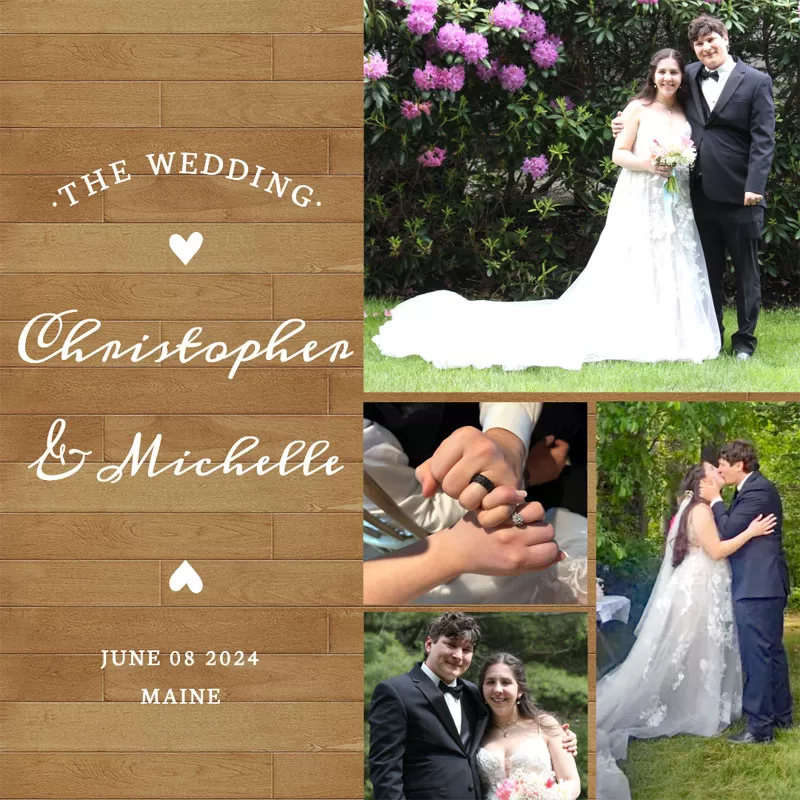
The Fotor design features go well beyond AI filters and photo effects. You can create birthday cards, advertisements, recipe cards, announcements, Instagram posts, Facebook posts, collages, and more from one platform.
To test this feature, I created a wedding collage using photos from my son and daughter-in-law’s wedding. This is the kind of tool that would be helpful when you want to make something personal quickly, without opening a more complicated design program or building a layout from scratch.
Fotor Design Feature: AI Image Generator
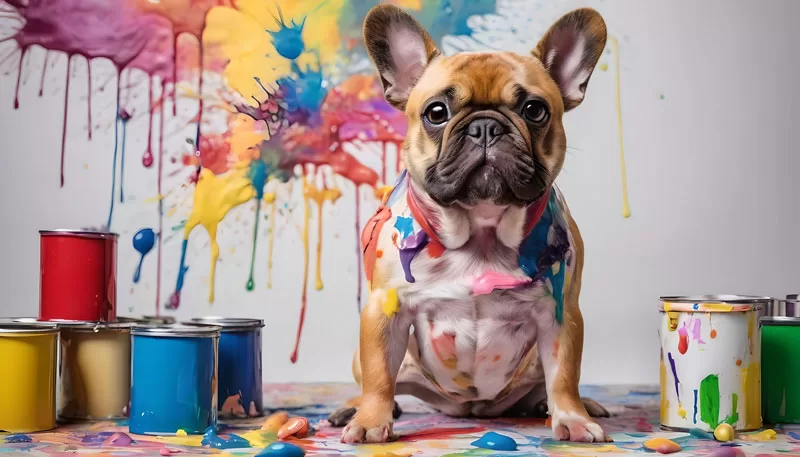
The AI Image Generator is one of the most impressive Fotor design features because it lets you create an image from a simple written description. You have already seen how Fotor uses AI with editing tools and filters, but this feature takes it a step further by generating a brand-new image based on the prompt you provide.
To test it, I decided to create something fun and colorful. I asked the Fotor AI Image Generator to create a fawn Frenchie with paint spills on him, surrounded by red, blue, yellow, green, and pink paint, with an easel and artwork nearby.
This was one of the results, and it is a great example of how a detailed prompt can help Fotor create an image with personality. I can see this being useful for blog graphics, social media images, creative projects, or anytime you need a custom visual and do not have the exact photo you want.
How Fotor AI Credits Work
Because AI image generation uses more resources than a basic photo edit, Fotor uses a credit system for some AI-created images and design features. New users may receive trial credits, and Fotor Pro members may receive credits as part of their membership.
This is something to keep in mind before generating several versions of the same idea. The more specific you are with your prompt, the better chance you have of getting a usable image without spending extra credits on multiple attempts.
When creating an AI image, it helps to describe the subject, style, colors, background, mood, and any important details you want included. A clear prompt gives Fotor more direction and can help the final image come closer to what you had in mind.
Are Fotor AI Features Free?
Some Fotor AI features may be available with trial credits or limited free access, but many of the more advanced tools use credits or require a paid plan. Since pricing, credit amounts, and feature access can change, it is always best to check the current Fotor plan details before choosing a subscription.
For a closer look at the subscription options and what is included, my Fotor photo editor review covers the pricing and Pro features in more detail.
Is Fotor Worth Trying for AI Design Features?
After spending more time with Fotor’s design features, I can see why these tools are useful for more than just basic photo editing. The AI filters, background changer, avatar generator, quick design options, and AI image generator all give you different ways to create visuals without starting from scratch.
Some tools are more practical, like changing a background or creating a collage, while others are simply fun to experiment with, like anime filters, 3D cartoon effects, and AI-generated images. For bloggers, small business owners, social media users, or anyone who likes creating graphics, Fotor offers a lot of creative flexibility in one place.
I would still recommend being intentional when using the AI tools, especially when credits are involved. The more specific you are with your prompt or design goal, the better your results will be. Overall, Fotor’s AI features make it easy to turn simple photos and ideas into something more creative, polished, and unique.